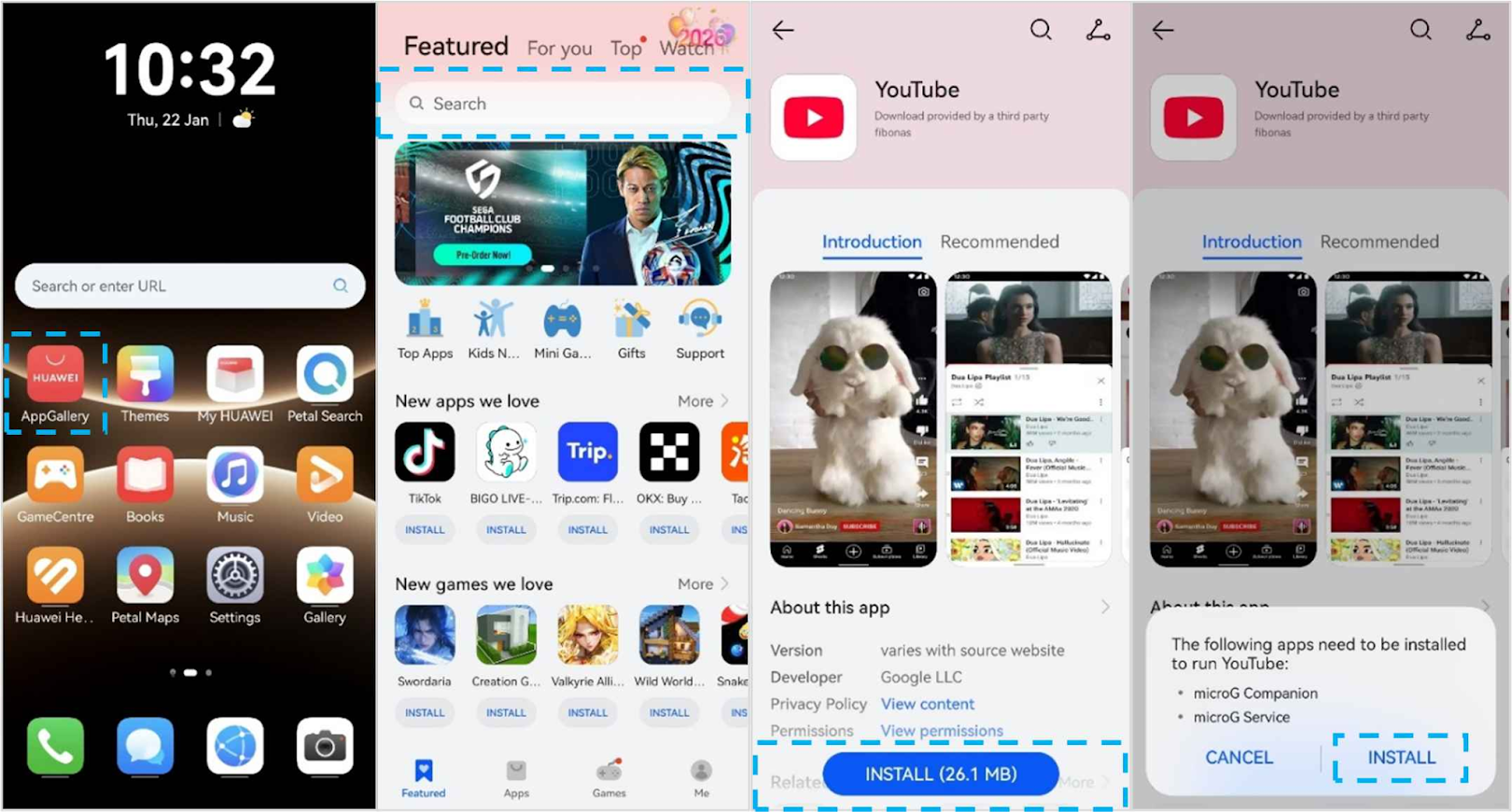
A new Huawei phone can feel unfamiliar if the first thing you look for is Google Play. The easier way to set it up is not to chase a separate store immediately. Huawei’s own guide starts with AppGallery, then adds the services needed for Google apps to run, and only uses GBox when an app is not available directly.
Start in AppGallery
Open AppGallery and search for a Google app such as YouTube. Tap Get, download it, and follow the installation prompt. When the phone says additional apps are needed to run YouTube, tap Install instead of cancelling the process.
At this point, microG Companion and microG Service are installed automatically. They are not extra apps you need to use every day; they are the background pieces that allow the Google app to work and support account sign-in.
Sign in through microG Services
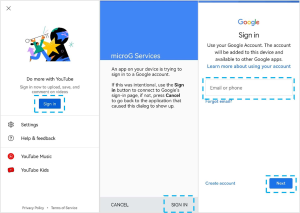
Once YouTube is installed, open it and tap Sign in. The phone redirects you to a page called microG Services. Tap SIGN IN again, and the regular Google sign-in page appears. Enter the Google account you want to use and finish the login.
This is the part many first-time users miss when searching for huawei google play store. The sign-in step does not happen directly inside YouTube at first; microG Services handles the handoff to the Google login screen.
Use GBox only when AppGallery does not have the app
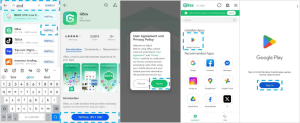
If the app you want is not available in AppGallery, Huawei’s guide moves to GBox. Search for GBox in AppGallery, install it, open it, and sign in. After a successful login, GBox gives you access to Google Play inside its own environment.
From there, search for the missing app. The original guide uses Netflix as the example: find Netflix inside Google Play within GBox, then tap Install. That keeps the sequence clear—AppGallery first, GBox second.
Keep the supporting services installed
Do not remove GBox, microG Companion, or microG Service after the apps start working. Huawei’s guide specifically notes that these components are required for the apps to continue running smoothly.
For future apps, keep the same habit. Search AppGallery first. If the app is there, install it directly. If it is not, open GBox and look for it there instead of rebuilding the whole setup.
Update apps from the right place
For AppGallery updates, open AppGallery, go to Me, and tap Update. If the phone shows a message saying updates are available for apps from third-party sources, tap Update to continue.
Apps installed through GBox are handled differently: the guide says they update automatically in batches. That is another reason not to uninstall GBox once you start using apps from it.
Before adding another app
Before installing the next app, make sure the first one is working. Open YouTube, confirm that sign-in is complete, and check that microG Companion and microG Service are still installed. Then move on to the next app. This keeps the setup orderly and helps identify which step caused a later problem.
The setup is easier than it looks
The huawei google play store question sounds like it requires a complicated workaround, but the original Huawei process is fairly structured: AppGallery first, microG when a Google app needs it, GBox only when the app is missing, and regular updates afterwards.
Once those roles are clear, the phone is much easier to manage. You do not need to reinstall everything every time you want a new app; you simply start with AppGallery and use GBox when necessary.